AI Video Generator From Image Free: Turn Photos Into Clips Without Paying
You can turn a photo into a short video for free in VIBE, with no login. Here are the free models, the photos that animate best and prompts to copy.
Written by Vincent Park
Published
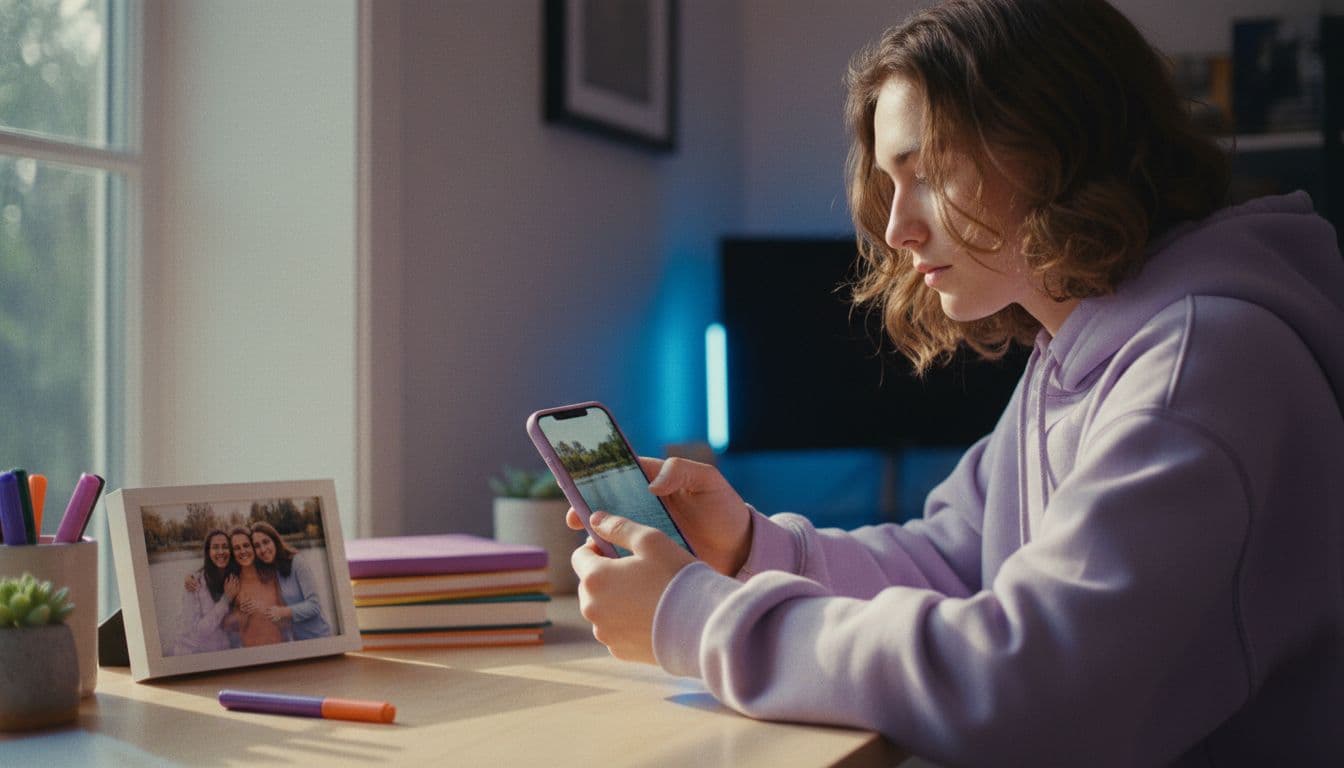
An AI video generator from image free lets you upload one photo, describe the motion and get a short video back without paying or creating an account. In VIBE, five models are free for this: Seedance Pro Fast, LTX Video, Luma Dream Machine, Wan 2.6 and PixVerse. This guide shows which one to pick, which photos animate best and four prompts you can copy today.
In one sentence
An AI video generator from image free is an image-to-video tool that animates a single photo into a short clip at no cost; in VIBE, Seedance Pro Fast, LTX Video, Luma Dream Machine, Wan 2.6 and PixVerse are free and need no login.
What is an AI video generator from image free, and how does it work?
Image-to-video is the part of generative video where the model starts from a picture instead of an empty canvas. Your photo fixes the subject, the lighting and the composition, so the model only has to invent motion, which is why results usually look more controlled than pure text-to-video, as the general overview of text-to-video models explains. Our complete guide to AI video from an image covers the technique in depth.
"Free" has a practical meaning here: you can create clips without paying and without signing in first, as our guide to an AI video generator with no login explains. As of October 2026, VIBE offers five free models and several premium ones, on iOS, Android and the web.
Which free models turn a photo into a video?
Each free model has its own look, so it is worth testing two before you decide. This table summarises the free models in VIBE and one premium step up, as of October 2026.
| Model | Cost in VIBE | Good for |
|---|---|---|
| Seedance Pro Fast | Free | Quick, smooth tests of people and scenes |
| Wan 2.6 | Free | Natural motion in landscapes and pets |
| PixVerse | Free | Stylised, social-ready looks |
| LTX Video | Free | Fast drafts of simple movement |
| Luma Dream Machine | Free | Smooth camera moves |
| Kling 3 Pro | Premium | Longer, more polished clips |
A simple rule: start with Seedance Pro Fast or Wan 2.6, compare the result with PixVerse, and move to Kling 3 Pro only if you need more length or polish. Every model is listed under models on the home page. Wan 2.6 comes from Alibaba, and you can read the maker's own description in its Wan 2.6 announcement.
Which photos work best for image-to-video?
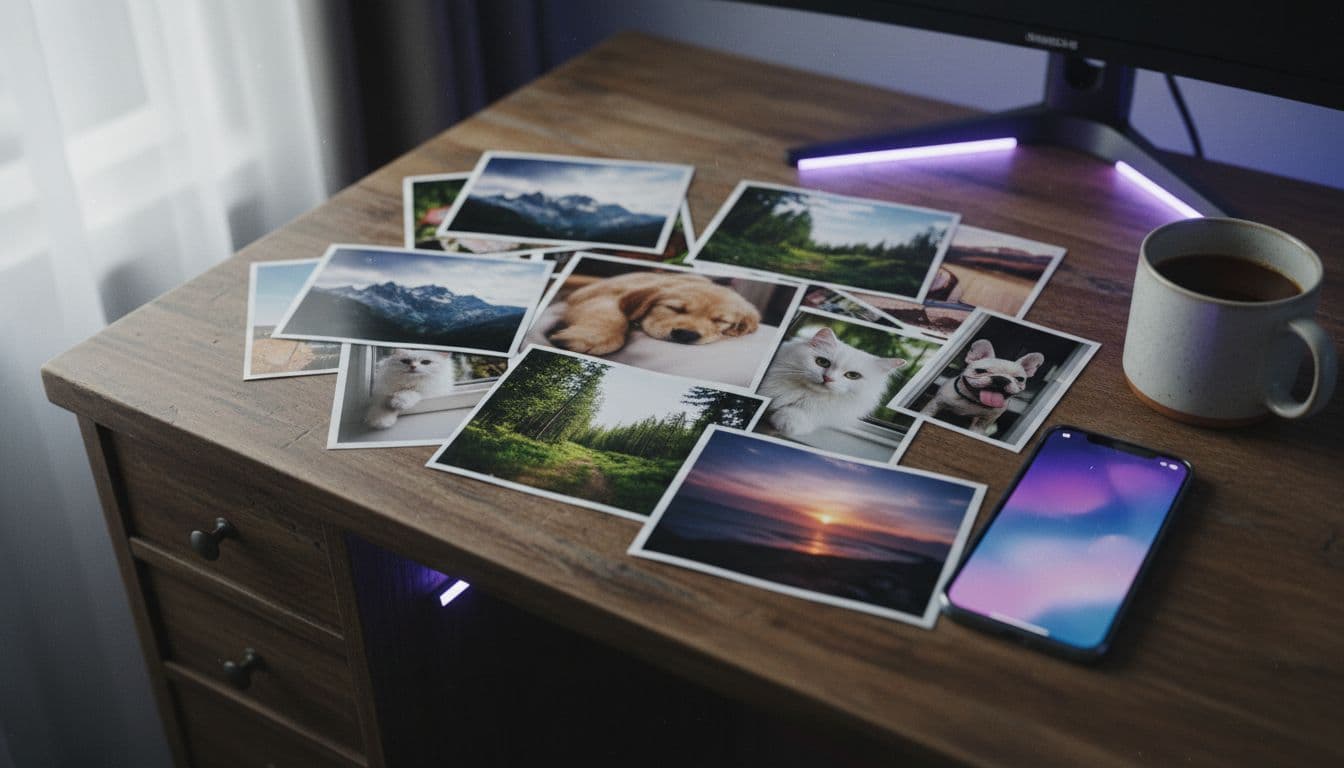
The photo decides most of the result. Pick images that give the model something clear to move:
- One clear subject. A single person, pet or object animates better than a crowded scene.
- Sharp, well-lit photos. Blur and heavy noise turn into wobble once the picture moves.
- Room to move. Leave space around the subject so a camera push or a turn of the head has somewhere to go.
- Natural poses. Relaxed faces and bodies animate more believably than stiff or cropped ones.
- Vertical framing for social. A 9:16 photo gives you a 9:16 clip for TikTok, Reels and Shorts.
Avoid photos with small readable text, many overlapping people or heavy filters. Only animate photos you own or have permission to use, and never someone else's face without their consent.
Preparation takes a minute and pays off. Crop the photo to the shape you will publish in, such as 9:16 for TikTok, Reels and Shorts, before you upload it, so the model does not have to guess the framing. Remove stray objects at the edges, because anything near the border can slide or stretch when the camera moves. If the photo is dark, brighten it slightly first; models read clear light far better than murky shadows. Finally, keep the file reasonably sized and sharp rather than heavily compressed, since compression artifacts tend to shimmer once the image starts to move. These small steps cost nothing and often decide whether a free model gives you a clean first result or a messy one.
How do you turn a photo into a video in VIBE?
- Open VIBE on iOS, Android or the web; no login is needed to start.
- Choose image-to-video and upload your photo.
- Pick a free model such as Seedance Pro Fast or Wan 2.6.
- Describe only the motion: what moves, how the camera moves and the mood.
- Generate, watch the clip and change one detail at a time.
- Download the clip and post it, adding an AI label where the platform asks for one.
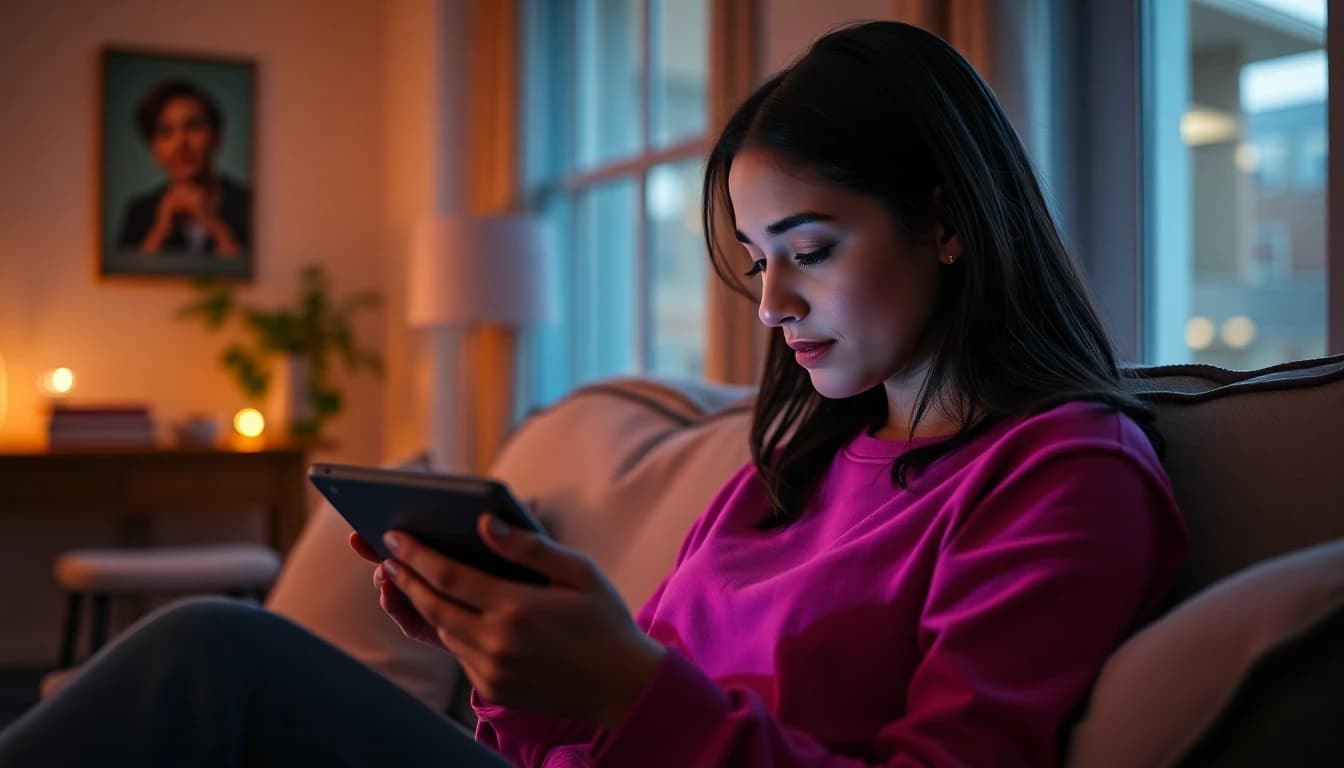
Because the photo already shows the scene, do not describe it again. Describe what should happen next. Start with a portrait:
 Seedance Pro Fast
“Animate this portrait photo: the woman slowly turns her head toward the camera and smiles, a light breeze moves her hair, soft natural light, the background stays still, gentle push-in.”
A good workflow is to run the same photo through two free models with the identical prompt, then compare. Seedance Pro Fast often gives smooth, natural human motion, while Wan 2.6 tends to handle scenery and animals well, and PixVerse leans toward a more stylised, social-ready finish. Keep a note of which model suited which kind of photo, because the same choice will usually work again. Change only one thing between attempts, such as the camera move or the speed of the action, so you can see exactly what caused the difference. Two or three attempts are normally enough to get a clip worth posting.
What prompts work best for animating photos?
Keep each prompt to one action, one camera move and one mood. Our AI video prompt guide has more patterns. Here are three more prompts to copy:
 Wan 2.6
“Animate this landscape photo: clouds drift slowly across the sky, tall grass sways in the wind, the camera glides forward a few steps, calm cinematic mood, no people.”
 PixVerse
“Animate this product photo: the camera makes a slow 180-degree orbit around the bottle on the table, soft light reflections slide across the glass, background stays sharp and unchanged.”
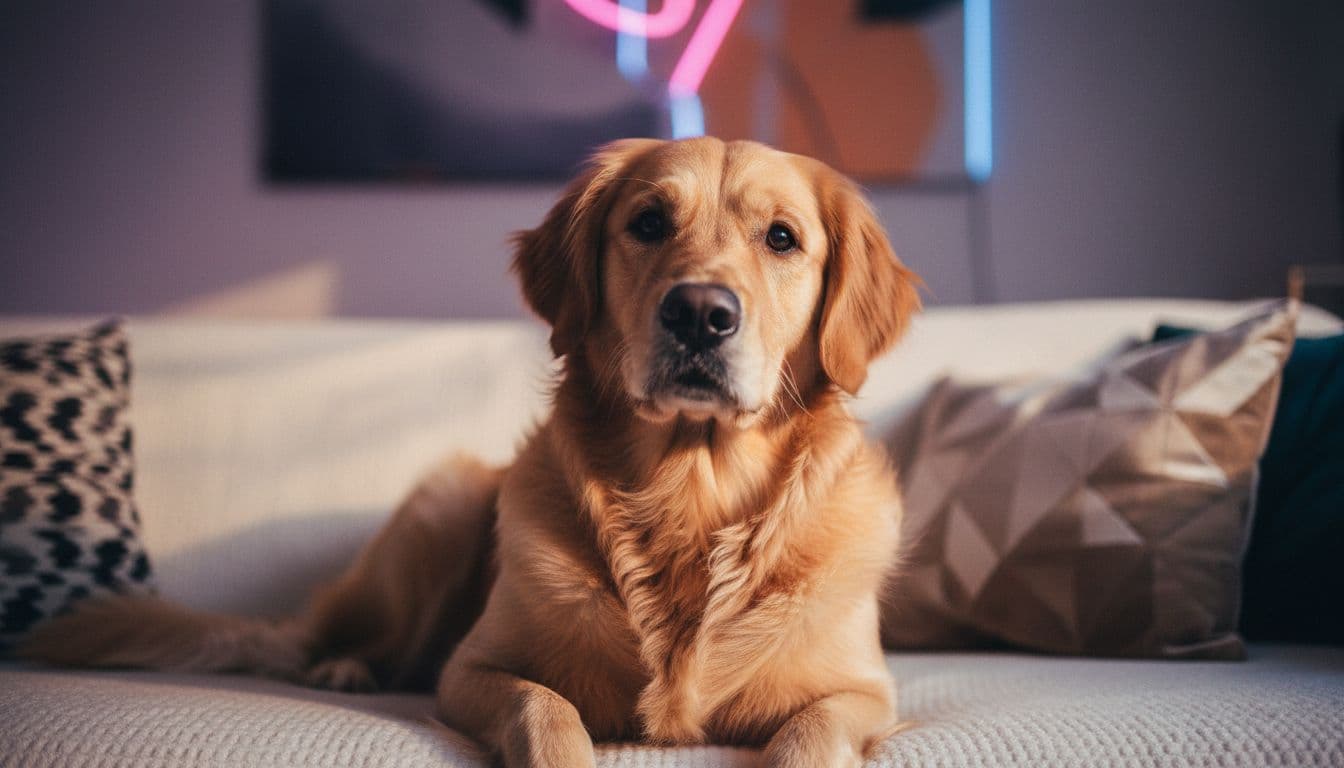
Wan 2.6“Animate this photo of my dog: ears twitch, the tail wags gently and the head tilts to the side, locked-off vertical 9:16 frame, warm indoor light.”
If a result looks too busy, remove one movement from the prompt. Fewer instructions usually give calmer, more believable motion.
What are the limits of free photo-to-video?
Free models are great for testing and for most social clips, but they have limits you should know before you start:
- Short clips. Free clips are short, so plan a single moment per generation.
- Drift. Faces and details can change slightly during motion; regenerate if something looks off.
- No readable text. Signs and captions often warp, so add text afterwards in your editing app.
- Big movements. Fast action and complex hands are the hardest things to animate.
If you need longer or more polished clips, premium models such as Kling 3 Pro are the next step. Our free AI video generator guide compares free and paid options in more detail.
Before you post, check the first and last frames of the clip. The first frame should match your photo, and the last frame should still look like the same subject. If the face, hands or background drift, shorten the movement in the prompt or pick a calmer camera move. You can also use the final frame of a good clip as the starting photo for a follow-up clip, which is a simple way to continue a scene without rewriting everything. Always keep the original photo, so you can start again from a clean source.
How do you post and label photo animations on TikTok, Reels and Shorts?
Export vertical 9:16 and put the most interesting motion in the first second. Platforms ask you to label realistic AI content, so read TikTok's rules for AI-generated content and YouTube's disclosure policy for altered or synthetic content before you publish.
Do not animate photos of real people without their permission. This is general information, not legal advice. When you are ready, open VIBE and follow the three steps under how it works.
Frequently asked questions
What is the best AI video generator from image for free?
In VIBE, Seedance Pro Fast and Wan 2.6 are good free starting points, and PixVerse, LTX Video and Luma Dream Machine are also free. Test two with the same photo and keep the one you prefer.
Can I turn a photo into a video for free without signing up?
Yes. VIBE lets you start creating with free models without a login, so you can upload a photo, add a motion prompt and download a clip.
How do I make a video from a photo with AI?
Upload a sharp photo, choose a model, describe only the motion and the camera move, generate, then refine one detail at a time and download the clip.
Which photos animate best?
Sharp, well-lit photos with one clear subject and room to move animate best. Avoid small text, crowds and heavy filters.
Can I animate a photo of my pet?
Yes. Pets work well because small motions like ear twitches, tail wags and head tilts look natural. Keep the prompt to one or two small movements.
Are free AI video clips good enough for TikTok and Reels?
For most short social clips, yes. Export vertical 9:16 and label realistic AI content where the platform requires it. Choose a premium model only when you need longer or more polished clips.
Does it work on my phone?
Yes. VIBE runs on iOS, Android and the web, so you can upload a photo and create a clip without a computer.
- #aivideogeneratorfromimagefree
- #aivideomakerfromphoto
- #imagetoaivideo
- #phototovideo
- #freeaivideo
Start Creating AI Videos Today
Download VIBE for free on iOS and Android. No login required. Access 10+ AI video models and generate videos from text prompts or images.


Keep reading
All articles AI Video Generator
AI Video Generator No Login: How It Works and What to Check
No account, no card, no waiting: here is how a no-login AI video generator works, what you give up, and a checklist for judging any app.
Vincent Park8 min read AI Video Generator
AI Video Generator From Text: How Text-to-Video Works (With 4 Prompts to Copy)
Type one scene, get a short video. Here is how text-to-video works, the five-part prompt formula, and which VIBE model to pick for each job.
Vincent Park9 min read