AI Video With Subtitles: How to Caption Your Generated Clips
Most short videos are watched on mute, so a clip without captions loses viewers in the first second. Here is how to plan, generate and caption AI video the right way.

Written by Vincent Park
Published

AI video with subtitles is an AI-generated clip that also carries readable captions, so it still makes sense when the sound is off. The reliable way to make one is to generate a clean clip with space left for text, then add the captions as a separate layer. This guide shows the workflow, the caption-safe zones, the model picks and three prompts you can paste into VIBE.
In one sentence
AI video with subtitles is a video made by a generative model that is paired with timed on-screen text, either burned into the picture or supplied as a separate caption track, so viewers can follow it without sound.
What is AI video with subtitles?
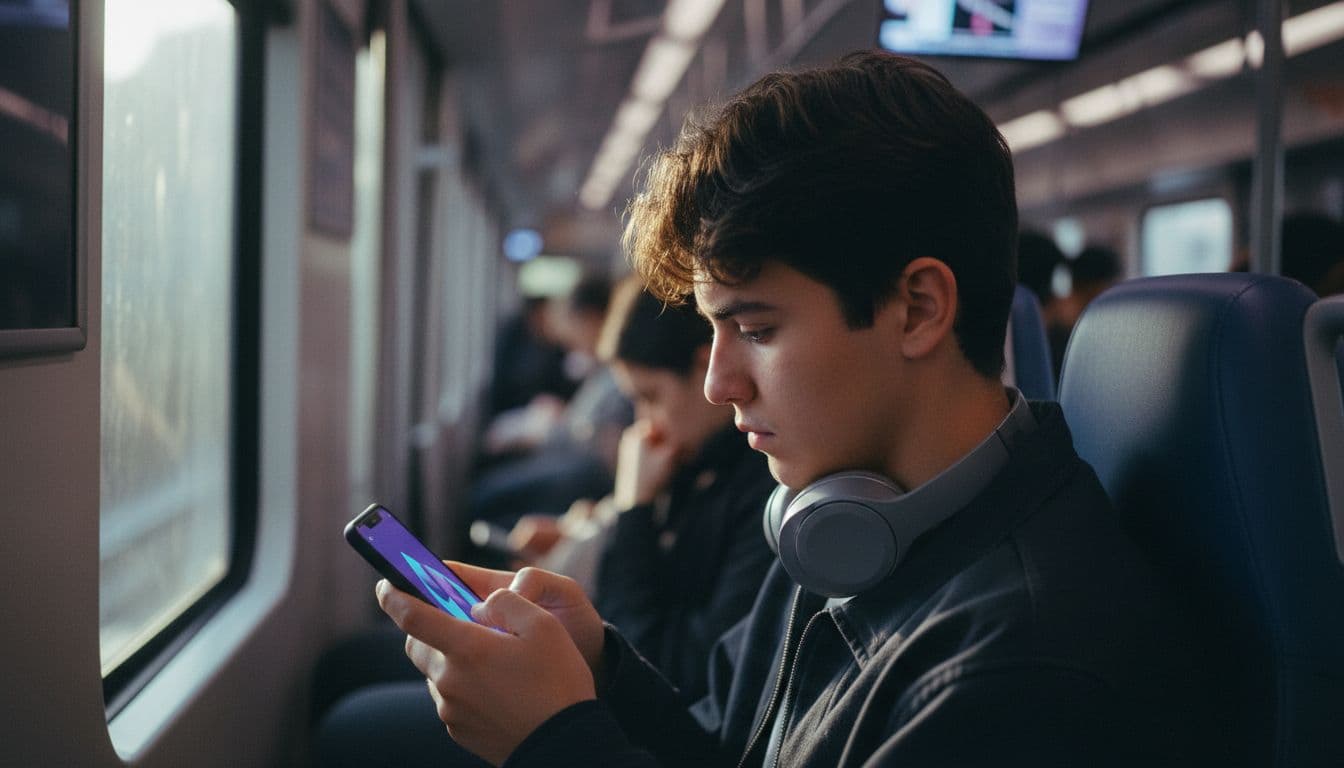
Every AI video model starts from the same place: you describe a scene, and it returns moving pictures, sometimes with sound. Subtitles are the layer that turns spoken words and sound cues into text. Put the two together and you get an AI video with subtitles, a clip that works for the viewer who is on a train, in a meeting or simply scrolling with the volume down.
The important detail is that the caption is usually not something you ask the video model to draw. Video models are good at motion and light, but they often garble lettering when asked to render words inside the frame. The dependable method is to keep the generated picture clean and add the text afterwards, which is also the approach covered in our complete AI video prompting guide.
Why do captions matter on Shorts, TikTok and Reels?
Captions make a clip understandable in the first second, whatever the viewer's situation. They also make it accessible: the W3C's accessibility guidelines require captions for prerecorded audio in video as a baseline (Level A) success criterion, as set out in its guide to captions. Platforms have built the feature in for the same reason; TikTok, for instance, introduced automatic captions in April 2021 to make videos easier to follow.
- Sound-off viewing. Feeds often autoplay silently, so text is the first thing a viewer reads.
- Accessibility. Captions help viewers who are deaf or hard of hearing, and anyone in a noisy place.
- Language reach. A translated caption track lets one clip serve several markets.
- Clarity. On-screen words reinforce the hook and make dialogue easier to follow.
There is a second, quieter benefit: retention. A viewer decides within a moment whether to keep watching, and a short line of text that states the hook gives their eyes something to read while the picture loads in. Generated clips are often only a few seconds long, so there is no time to ease in. Treat the first caption as part of the hook, not as an afterthought added at the end.
Captions also protect you from a common AI-video problem: dialogue that is hard to hear. Even when a model generates speech, background music or ambience can sit close to the voice. A caption removes the doubt and makes the line land the first time.
Should I burn captions in or use a caption track?
Use a caption track where the platform supports it, and burn captions in only when you need the exact same look everywhere. A caption track (an SRT or similar file, or the platform's own auto-captions) can be switched on or off and edited later. Burned-in captions are part of the picture, so they always show but cannot be changed without re-exporting. As of November 2026, YouTube still lets you add subtitles and captions, including by uploading a caption file.
| Method | Viewer can turn off | Easy to edit later | Best for |
|---|---|---|---|
| Platform auto-captions | Yes | Yes, in the platform editor | Fast posting on TikTok, Reels and Shorts |
| Uploaded caption file | Yes | Yes, edit the file and re-upload | Longer YouTube videos and translations |
| Burned-in captions | No | No, re-export required | Styled hook text and clips shared outside a platform |
For translated versions, a caption file is the cleanest route. Write the line once in English, translate it, and upload each language as its own track. One generated clip can then serve several markets without a new render. If the clip has no speech at all, you can skip the track and use short on-screen words as part of the edit instead.
One rule applies to every method: write for the eye, not the ear. Break lines where a person would naturally pause, keep each caption on screen long enough to be read twice, and avoid stacking more than two lines. A caption that flashes past is no better than no caption.
How do I add subtitles to an AI video?
Generate the clip first, then caption it where you publish. The steps below fit the flow in how it works, and they work for any model, with or without sound.
- Pick the shape first. Choose 9:16 for TikTok, Reels and Shorts before you generate, as explained in our aspect ratio guide.
- Prompt for a clean frame. Ask for no on-screen text and keep the lower third visually calm so captions have room.
- Generate and review. Rerun the prompt until the subject, light and motion are right.
- Add the words. Switch on the platform's auto-captions, or upload a caption file you wrote yourself.
- Check the timing. Play the clip with the sound off and fix any line that appears late or runs too long.
If your clip has no speech, the same steps apply, only the text is different. Instead of transcribing dialogue, write one or two short on-screen lines that carry the message, such as the product name or the question the clip answers. Keep them in the safe zone described below and keep the wording brief enough to read in a single glance.
Where is the caption-safe zone in a 9:16 video?
The safe zone is the middle of the frame, away from the bottom edge and the sides, where app buttons and the description sit on top of the video. Platforms change their interface from time to time, so treat any measurement as a guide and preview the clip in the app before you post. A practical rule is to keep faces in the upper two thirds and leave the lower third quiet.
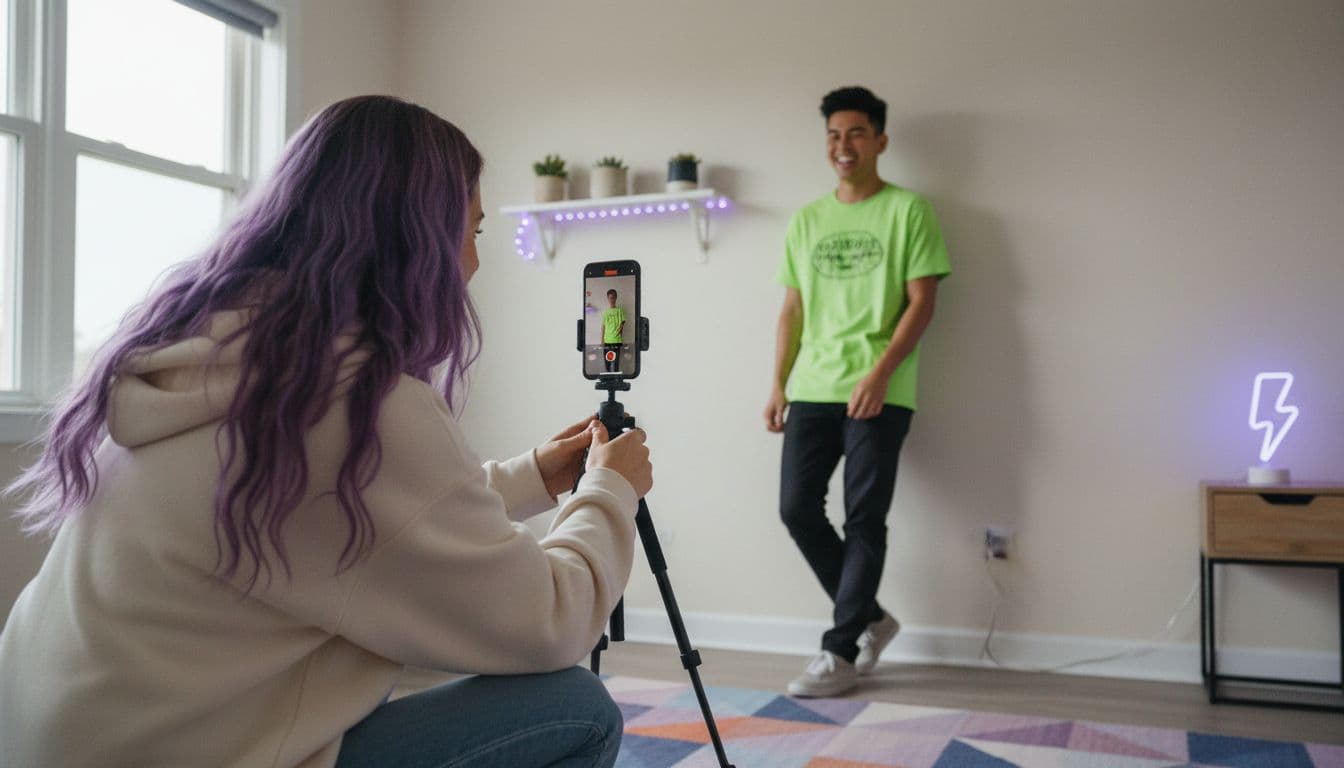
Aspect ratio affects this directly. A 16:9 clip has generous space at the sides and little at the bottom, while a 9:16 clip is tall and narrow, so a long line of text wraps and covers more of the subject. If you plan to reuse one idea on both YouTube and Shorts, generate it twice in the right shape rather than cropping a single render.
- Keep the subject's face and the key action out of the bottom edge.
- Use plain backgrounds in the lower third so white or yellow text stays readable.
- Limit each caption to a short line or two; long blocks cover the picture.
- Preview the finished clip inside the app, not only in your gallery.
How do I prompt a clip so captions fit?
Describe the scene, then protect the space for text. Name a calm lower third, ask for no lettering and, if the model supports sound, write the line of dialogue you will caption. The three prompts below are tuned for that.
 Veo 3.1 Fast
“A friendly barista in a bright cafe looks into the camera and says in English, 'Our new oat latte is ready.' Vertical 9:16 framing, subject centred in the upper two thirds, plain wooden counter in the lower third, soft window light, quiet cafe ambience. No on-screen text.”
 Kling 3 Pro
“Two friends at a night market food stall laugh and talk while sharing noodles, steam rising, neon signs blurred behind them. Faces in the upper two thirds of a vertical 9:16 frame, empty dark table in the lower third, handheld feel. No on-screen text or subtitles.”
 Seedance Pro Fast
“A slow push-in on a runner tying shoelaces on a city bridge at sunrise, golden light, mist over the river, calm composition with open space in the lower third, vertical 9:16, no text, no logos.”
Notice what the prompts leave out. They never ask the model to write the caption, and each one ends by banning on-screen text. That keeps the picture free of stray, misspelled lettering and lets your real captions sit on a clean area. If a render does contain unwanted text, rerun it instead of trying to hide it.

Which VIBE model is best for captioned clips?
Choose by whether you need spoken dialogue. As of November 2026, Veo 3.1 Fast and Kling 3 Pro both generate sound with the picture, which gives you real speech to caption, while the other models in VIBE's model list render picture only, which suits clips with a separate voiceover. Our AI video with audio guide compares the two audio models in more depth.
| Model in VIBE | Sound | Max clip length | Caption angle |
|---|---|---|---|
| Veo 3.1 Fast | Generated with the picture | 8 seconds | One short spoken line, easy to caption |
| Kling 3 Pro | Generated with the picture | 15 seconds | Longer scenes and multi-character dialogue |
| Seedance Pro Fast | Picture only | Check the app | Silent b-roll under your own voiceover |
A simple decision rule works well. If a single spoken line carries the clip, use Veo 3.1 Fast and caption that line. If two people need to talk or the action needs more than eight seconds, use Kling 3 Pro. If you already have a voiceover recorded, pick any model that renders the best picture, then caption your own audio, which is also the simplest way to keep every word exactly as you wrote it.
Free models are enough for this workflow. Because the captions come from the platform, you do not need a premium render to get readable text, only a clean frame with space for it. Start with a free model, check that the framing works and move up only if the clip needs longer duration or generated speech.

What should I check before I post?
- Watch it once with the sound off; if the story still lands, the captions work.
- Proofread names, brands and numbers, because auto-captions can mishear them.
- Confirm no caption sits under the app's buttons or description.
- Keep captions short, high-contrast and synced to the speech.
Frequently asked questions
How do I add subtitles to an AI-generated video?
Generate a clean clip first, then add captions where you publish it. Use the platform's auto-captions on TikTok, Reels or Shorts, or upload a caption file on YouTube. Always play the clip with the sound off to check timing.
Can an AI video model write the subtitles itself?
It can, but the result is unreliable, because video models often garble lettering inside the frame. It is safer to ask for no on-screen text and add captions as a separate layer.
Does VIBE add captions automatically?
VIBE generates the video clip. Add captions with the auto-caption or caption-file tools of the platform where you post, so you can edit them later.
Are burned-in captions better than a caption track?
Burned-in captions always show and keep one look everywhere, but cannot be edited without re-exporting. A caption track can be switched off and corrected later, so it is usually the better default.
Where should captions go in a vertical video?
Keep them in the middle of the frame, away from the bottom edge and sides where app buttons and descriptions cover the video. Preview the clip inside the app before posting.
Which AI video models can make clips with speech to caption?
In VIBE, Veo 3.1 Fast and Kling 3 Pro generate sound together with the picture, so they can produce dialogue you can caption. Other models render picture only and suit clips with a separate voiceover.
- #aivideowithsubtitles
- #addcaptionstoaivideo
- #aivideosubtitles
- #captionsforshorts
- #aivideomaker
Start Creating AI Videos Today
Download VIBE for free on iOS and Android. No login required. Access 10+ AI video models and generate videos from text prompts or images.


Keep reading
All articles Trends & tutorials
AI Video Voiceover: Add Narration in Any Language to Generated Clips
Two VIBE models can speak inside the render, and any clip can take a recorded or synthesised voice. Here is how to choose, write and translate narration.
Vincent Park8 min read Trends & tutorials
Script to Video AI: Turn Any Script Into Clips, Step by Step
Script to video AI is a workflow, not a button: split the script into beats, prompt one shot per beat, then add voiceover. Here are the steps and copy-ready prompts.
Vincent Park9 min read