How to Make AI Video in 2026: A Beginner’s Step-by-Step Guide
How to make AI video comes down to six steps — idea, prompt, model, generate, refine, export — and none of them need a camera, actors, or editing software. Here is the full beginner workflow, with copy-ready prompts.
Written by Vincent Park
Published
Figuring out how to make AI video comes down to three inputs — an idea, a written prompt, and a model — and one output: an exported clip ready to post, usually in under ten minutes with no editing software involved. This guide walks through the full six-step workflow, from picking a topic to publishing the finished cut, using both free and premium AI video models inside VIBE.
In one sentence
How to make AI video means turning a written prompt or a single photo into a moving clip with an AI model — no camera, actors, or timeline editing required, just a clear description of what you want to see on screen.
How to Make AI Video in 6 Steps
Every AI video, from a five-second product shot to a full talking-head explainer, is built the same six-step way. The steps below are the short version; each one gets its own section further down with the details that trip beginners up.
- Pick your idea and format — decide what the clip shows and whether it starts from text or from a photo.
- Write the prompt — describe the subject, action, camera, and light in one or two sentences.
- Choose a model and aspect ratio — match the model to the job and pick 9:16, 16:9, or 1:1.
- Generate the clip — the model renders your prompt into video, typically in well under a minute.
- Review and refine — watch the result, then adjust the prompt or regenerate anything that looks off.
- Export and post — download the finished clip and publish it, disclosed as AI-made where a platform requires it.
What Do You Need Before You Start?
Nothing about this workflow requires a studio, a crew, or prior editing experience. The whole point of an AI video generator app is that the software does the filming and the compositing — you just need to be specific about what you want.
- A phone or a computer with a browser — VIBE runs as a free app on iOS and Android and in the browser, with no separate render software to install.
- A one- or two-sentence idea of what the clip should show — you do not need a full script.
- Optional: one reference photo, if you would rather animate an existing image than start from a blank text prompt.
- A few free minutes — VIBE’s free tier has no login wall and no credit card requirement to try it.
Step 1: Pick Your Idea and Format
Before typing a single word, decide two things: what the clip is for, and where it starts from. A product teaser for TikTok wants a vertical 9:16 frame and a punchy five- to eight-second idea; a YouTube intro wants 16:9 and a little more room to breathe. Decide next whether you are generating from text — describing a scene that does not exist yet — or from an image — animating a photo you already have, such as a product shot or a portrait. Image-to-video is usually the easier starting point for beginners: the photo already fixes the subject, lighting, and composition, so the prompt only needs to describe the motion and camera move you want added to it.
Keep the first idea small. A single subject doing one clear action — a coffee cup being poured, a dog running across a yard, a product spinning on a table — generates far more reliably than a multi-scene story on the first attempt. You can always chain clips together later once you know how one model responds to your prompts.
Step 2: Write a Prompt That Works
The prompt is the only steering wheel an AI video model gives you, so specific language matters more than long language. A reliable prompt names the subject, the action, the camera shot, and the light, in that rough order — our complete guide to writing AI video prompts breaks the formula down in detail with more examples. For a first attempt, aim for one or two sentences that a stranger could read and picture the exact same shot you have in mind.
 Seedance Pro Fast
“A young creator sits cross-legged on a bedroom floor, unboxing a small ceramic plant pot and holding it up to natural window light, smiling. Static handheld shot, soft daylight, warm wood tones, 6 seconds, UGC style.”

Step 3: Choose a Model and Aspect Ratio
VIBE’s model directory gives you a lineup of models rather than a single one, because no single model is best at everything. Free models like Seedance Pro Fast and PixVerse are fast and cost nothing, which makes them the right place to learn prompt writing before spending on a premium generation. Premium models like Veo 3.1 Fast add native audio — dialogue, ambience, and sound effects generated alongside the picture — which matters the moment your clip needs more than silent motion. Our guide to the best AI video models of 2026 compares the full lineup in more depth, and the Veo 3.1 video generator and Seedance video generator pages cover each model on its own.
| Model | Tier in VIBE | Best for |
|---|---|---|
| Seedance Pro Fast | Free | Fast everyday clips and UGC-style content |
| Veo 3.1 Fast | Premium | Native audio — dialogue, ambience, sound effects |
| PixVerse | Free | Quick social clips with simple, punchy motion |
Aspect ratio is the other decision to make here, and it is worth locking in before you generate rather than cropping afterward. Vertical 9:16 is the default for TikTok, Reels, and Shorts; horizontal 16:9 suits YouTube and landing pages; square 1:1 still works for feed posts on some platforms. Match the ratio to where the clip will actually be posted — a model can only compose the shot correctly if it knows the frame shape up front.
Step 4: Generate, Review, and Refine
Once the prompt, model, and ratio are set, generating is a single tap — the model renders the clip in the background while you can start a second prompt. When it lands, watch the full clip before deciding whether it works: check that the action reads clearly, the camera move matches what you asked for, and nothing distorts in the first or last frame. If something is off, the fix is almost always the prompt, not the model — add the missing detail (a camera angle, a light source, a pace) and regenerate rather than switching models on the first try.
 Veo 3.1 Fast
“Medium shot, eye level: a barista in a green apron steams milk behind a counter, the hiss and clink of the machine audible, ambient café chatter in the background, warm pendant lighting. 8 seconds, cinematic, native audio.”

Step 5: Export and Post It
Once a clip looks right, export it at the resolution your platform expects and publish it. If the finished video is realistic enough that a viewer could mistake it for unedited footage, check the disclosure rules of wherever you are posting it — YouTube requires creators to disclose altered or synthetic content that looks realistic, and TikTok labels AI-generated content the same way. Both are quick toggles in the upload flow, not extra editing work.
 PixVerse
“A golden retriever puppy chases a red ball across a sunlit backyard lawn, tail wagging, tracking shot at knee height, bright midday sun, 5 seconds, playful and energetic.”

How Do Free AI Video Generators Compare to Paid Ones?
As of September 2026, the gap between free and premium AI video models is narrower than most beginners expect — it is a difference of degree, not of workflow. Every step above works identically on both tiers; only the model doing the generating changes.
- Free models such as Seedance Pro Fast, PixVerse, LTX Video, Luma Dream Machine, and Wan 2.6 cover most everyday clips at no cost and with no login wall.
- Premium models such as Veo 3.1 Fast, Kling 3 Pro, and Sora 2 Pro add native audio, finer camera control, and stronger consistency across longer shots.
- Free tiers typically cap resolution or the number of generations per day; premium tiers raise those limits.
- Both tiers export and post the same way — there is no separate “pro workflow” to learn.
- Beginners can learn the entire six-step process on the free tier before ever paying for a premium generation.
Frequently Asked Questions
Is it free to make an AI video?
Yes. VIBE’s free-tier models — including Seedance Pro Fast, PixVerse, LTX Video, Luma Dream Machine, and Wan 2.6 — have no login wall and no credit card requirement, so you can complete the full six-step workflow at no cost.
Do I need video editing skills to make an AI video?
No. An AI video generator app replaces the camera, the actors, and the editing timeline with a written prompt or a single photo. The skill that matters is describing the shot clearly, not operating editing software.
Can I turn a photo into an AI video?
Yes — image-to-video is often the easiest starting point, because the photo already fixes the subject, lighting, and composition. The prompt only needs to describe the motion and camera move you want added.
How long does it take to generate an AI video?
Most clips render in well under a minute once the prompt, model, and aspect ratio are set, though exact time varies by model. The slower part of the process is usually reviewing and refining the prompt, not waiting on the render.
Which AI model should beginners start with?
A free model like Seedance Pro Fast or PixVerse is the best place to learn prompt writing, since generations cost nothing. Move to a premium model like Veo 3.1 Fast once a clip needs native audio or finer camera control.
Do I need to disclose that a video was made with AI?
If the finished clip is realistic enough to be mistaken for unedited footage, check the platform’s rules — YouTube and TikTok both require a disclosure label for realistic AI-generated or altered content, applied with a toggle during upload.
Start Creating AI Videos Today
Download VIBE for free on iOS and Android. No login required. Access 10+ AI video models and generate videos from text prompts or images.


Keep reading
All articles Trends & tutorials
How to Write AI Video Prompts That Actually Work (With Examples)
AI video prompts are the written instructions that tell a model what to generate — get the structure right and a model like Veo 3.1 Fast turns one sentence into a usable clip. Here's the formula, the vocabulary, and four copy-ready examples.
Vincent Park9 min read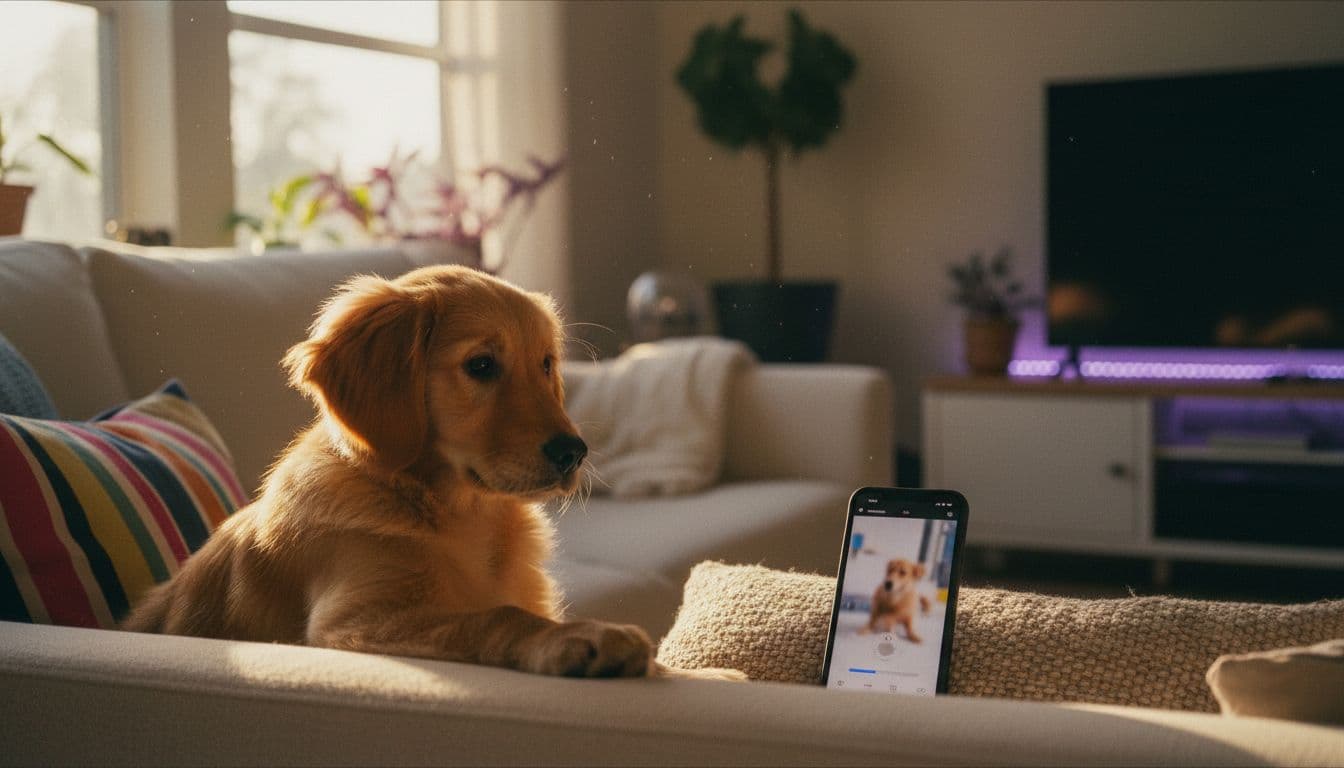 Video styles
Dog AI Video: Animate Your Dog or Cat Photo in Seconds
Turn a single dog or cat photo into a few seconds of natural motion — no filming, no editing skills, free to start in VIBE.
Vincent Park8 min read