AI Video Enhancement: Sharpen, Upscale and Polish Generated Clips
Learn what AI video enhancement does, when to upscale a generated clip and when it is faster to regenerate it with a better prompt or model.
Written by Vincent Park
Published
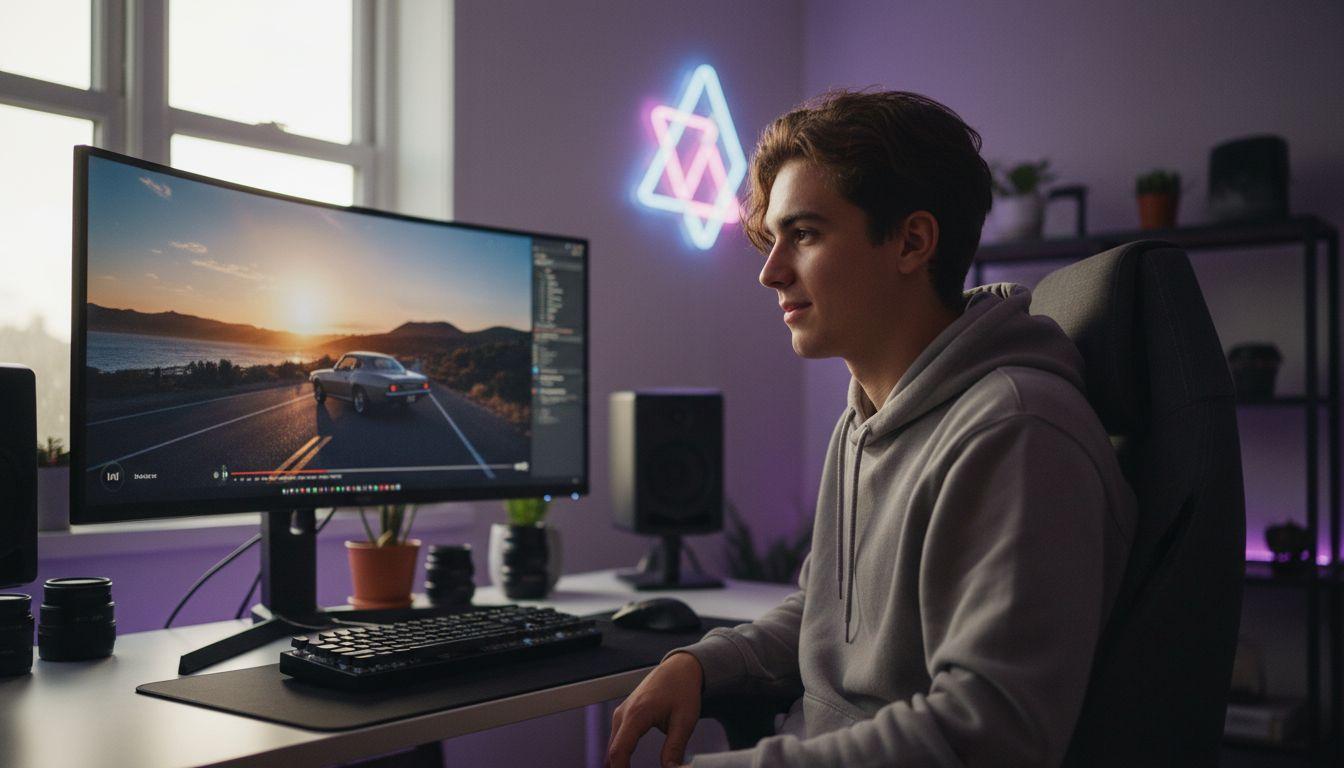
AI video enhancement is the process of sharpening, cleaning up and upscaling a clip after it has been generated, and it works best when the source clip is already good. If a generated video looks soft, noisy or low-resolution, you can enhance it, but often the faster fix is to regenerate it with a better prompt or a stronger model. This guide shows you how to tell the difference and how to get a polished result in VIBE.
In one sentence
AI video enhancement is the use of AI models to increase a clip's resolution, reduce noise and artifacts, and smooth motion, without changing what the clip shows.
What is AI video enhancement?
AI video enhancement covers every post-processing step that makes an existing clip look better: upscaling to a higher resolution, removing grain and compression noise, restoring fine detail, and adding in-between frames so motion feels smoother. The key word is existing. Enhancement does not create a new scene; it improves the one you already have.
For AI-generated footage this matters because most text-to-video and image-to-video models render a fixed output size and a fixed number of frames per second. A clip that looks great on a phone can look soft on a large monitor, and fast motion can show shimmer or smeared edges. Enhancement is how creators close that gap before posting to TikTok, YouTube Shorts or Instagram Reels.
As of November 2026, the model makers themselves are building this step in. Google's announcement for Veo 3.1 describes higher-fidelity upscaling, including 4K, which shows how closely generation and enhancement are now linked. The same idea has a long academic history under the name video super-resolution.
How does AI video enhancement work?
Enhancement tools use neural networks trained on pairs of low-quality and high-quality footage. The network learns what fine detail usually looks like, such as skin texture, fabric weave or leaves, and predicts it for your clip. Four techniques cover almost everything you will meet:
- Upscaling (super-resolution): increases pixel dimensions, for example from 720p to 1080p, by predicting new detail rather than just stretching pixels.
- Denoising and artifact removal: cleans up grain, blockiness and the faint flicker that appears in dark areas of generated video.
- Sharpening and detail recovery: restores edges on faces, text-free signage, hair and product surfaces that came out soft.
- Frame interpolation: inserts extra frames between the originals, which makes slow motion and camera moves look smoother. See motion interpolation for the background.
There is one limit to remember: enhancement can only invent plausible detail, not true detail. If a hand has six fingers or a face drifts between frames, no upscaler will fix it. Those problems belong to generation, which is why the next section matters most.
Should you enhance a clip or regenerate it?
Enhance when the content is right but the quality is low, and regenerate when the content itself is wrong. That single rule saves most of the time creators spend on polishing clips that were never going to work.
| What you see | Enhance it | Regenerate it |
|---|---|---|
| Soft or blurry but correct scene | Yes, upscale and sharpen | Only if you need a different framing |
| Visible grain or noise in dark areas | Yes, denoise | Optional |
| Choppy or stuttering motion | Yes, interpolate frames | Try a stronger model |
| Warped hands, melting faces, flickering objects | No, it will not fix this | Yes, adjust the prompt or switch model |
| Wrong action, wrong camera move or wrong mood | No | Yes, rewrite the prompt |
| Good clip that must look sharp on a large screen | Yes, upscale | No |
Regenerating is cheap in VIBE because you can start free with no login, test the same prompt on a different model and keep the best result. A good habit is to generate two or three variations first, pick the cleanest, and only then enhance.
- Generate the clip and watch it at full screen, not as a thumbnail.
- Check content first: hands, faces, text-free objects, camera move and timing.
- If the content is wrong, change the prompt or the model and regenerate.
- If the content is right but soft, noisy or small, enhance it.
- Export in the aspect ratio you need; see the aspect ratio guide for the right shape per platform.
How do you prompt for a sharper clip from the start?
The best enhancement is the one you do not need. Quality starts with the prompt: models render clearer detail when the scene is simple, the light is described and the camera move is gentle. Our guide to writing AI video prompts covers the full structure; the points below are the ones that most affect sharpness.
- Describe the light. Soft window light, golden hour or overcast daylight gives models clear contrast to work with.
- Limit the subjects. One or two subjects stay sharper than a crowd.
- Keep the camera move slow. A slow push-in or a locked shot avoids motion smear.
- Name the lens look. Phrases such as 'shallow depth of field' or 'natural handheld' guide rendering without adding clutter.
- Avoid contradictory instructions. 'Fast whip pan' and 'crisp detail' pull in opposite directions.
 Kling 3 Pro
“A baker in a small bakery shapes dough at a wooden counter, soft morning window light, shallow depth of field, slow push-in, natural colors, crisp detail on hands and flour.”
 Veo 3.1 Fast
“A quiet lakeside at sunrise, mist rising from the water, locked-off wide shot with a very slow drift to the right, soft golden light, realistic textures.”
 Seedance Pro Fast
“A ceramic coffee cup on a marble table, steam rising, soft diffused light from the left, slow rotating camera move, clean background, high detail.”
Which model gives the cleanest source clip?
Different models have different strengths, and picking the right one often removes the need for enhancement. VIBE brings several together in one app so you can compare them on the same prompt. Use the list below as a starting point, then judge by your own footage.
- Kling 3 Pro: a strong choice for realistic people, faces and natural motion. See the Kling 3 page.
- Veo 3.1 Fast: a fast option from Google DeepMind that handles cinematic framing and lighting well. See the Veo 3 page.
- Seedance Pro Fast: available on the free tier and useful for quick tests and product shots.
- Wan 2.6 and LTX Video: free-tier models that suit drafts and experiments before you commit to a final render.
A practical workflow is to draft on a free model, then re-run the winning prompt on a premium model for the final version. You can browse every available model in the models section, and read how realism differs between them in our guide to AI video that looks real.

Can a free AI video generator export HD video?
Output resolution depends on the model and the plan, not on the word 'free', so always check the clip you actually receive. Some models render at lower sizes by default and rely on upscaling to reach higher resolutions, which is why enhancement and generation are so closely linked.
When you test any free generator, check three things: the pixel size of the exported file, whether there is a watermark, and whether the motion stays smooth at full screen. Our free vs paid comparison explains where the real limits tend to sit.
What should an AI video app offer for better quality?
A good AI video app should make quality a workflow, not a gamble. Look for these capabilities when you choose where to create:
- Several models in one place, so you can switch when one struggles.
- Text-to-video and image-to-video, so you can start from a sharp reference image.
- Fast generation, so retrying is cheap.
- Clear aspect-ratio and duration controls for each platform.
- A free way to test before you commit.
Starting from a high-quality reference photo is one of the most reliable ways to get a clean clip; the image-to-video tutorial shows how. For a step-by-step view of the whole flow, see how it works.

What are the most common enhancement mistakes?
- Enhancing a bad clip. Upscaling amplifies warped hands and flicker instead of hiding them.
- Over-sharpening. Too much sharpening creates halos around edges and a plastic look on skin.
- Upscaling twice. Repeated passes add artifacts; do one clean pass at the end.
- Ignoring the platform. Social apps recompress video, so a perfect 4K export may look the same as a good 1080p one after upload.
- Forgetting audio and captions. A sharp clip with bad sound still loses viewers.
The safest order is: fix the content, then the resolution, then the motion, then export. If you follow it, most clips need only a single light enhancement pass.

Frequently asked questions
What is AI video enhancement?
AI video enhancement is the use of AI models to upscale, sharpen, denoise and smooth an existing video clip without changing what it shows.
Can AI video enhancement fix a bad AI-generated clip?
Only partly. Enhancement improves resolution, sharpness and noise, but it cannot repair warped hands, drifting faces or the wrong action. For those problems, regenerate with a better prompt or another model.
Is it better to upscale or to regenerate?
Upscale when the scene is correct but looks soft or small. Regenerate when the content is wrong. Generating two or three variations first and enhancing only the best one is usually the fastest route.
Does a higher resolution always look better?
No. Social platforms recompress uploads, so the visible gain from very high resolutions can be small. Clean motion, good lighting and a correct scene matter more than pixel count.
How can I get sharper AI video without enhancement?
Describe the light, limit the number of subjects, keep the camera move slow, and start from a sharp reference image when using image-to-video. Testing the same prompt on two models also helps.
Can I try this for free in VIBE?
Yes. VIBE is free to start with no login, and its free tier includes models such as Seedance Pro Fast, LTX Video, Luma Dream Machine, Wan 2.6 and PixVerse, so you can compare results before you pick a final version.
Start Creating AI Videos Today
Download VIBE for free on iOS and Android. No login required. Access 10+ AI video models and generate videos from text prompts or images.


Keep reading
All articles Trends & tutorials
AI Video Voiceover: Add Narration in Any Language to Generated Clips
Two VIBE models can speak inside the render, and any clip can take a recorded or synthesised voice. Here is how to choose, write and translate narration.
Vincent Park8 min read Trends & tutorials
AI Video With Subtitles: How to Caption Your Generated Clips
Most short videos are watched on mute, so a clip without captions loses viewers in the first second. Here is how to plan, generate and caption AI video the right way.
Vincent Park9 min read