Image to Video AI Tutorial: A Beginner's Step-by-Step Walkthrough
Turn one photo into a short video in four steps: prepare the photo, pick a model, write one motion sentence and refine. Includes three prompts to copy.
Written by Vincent Park
Published
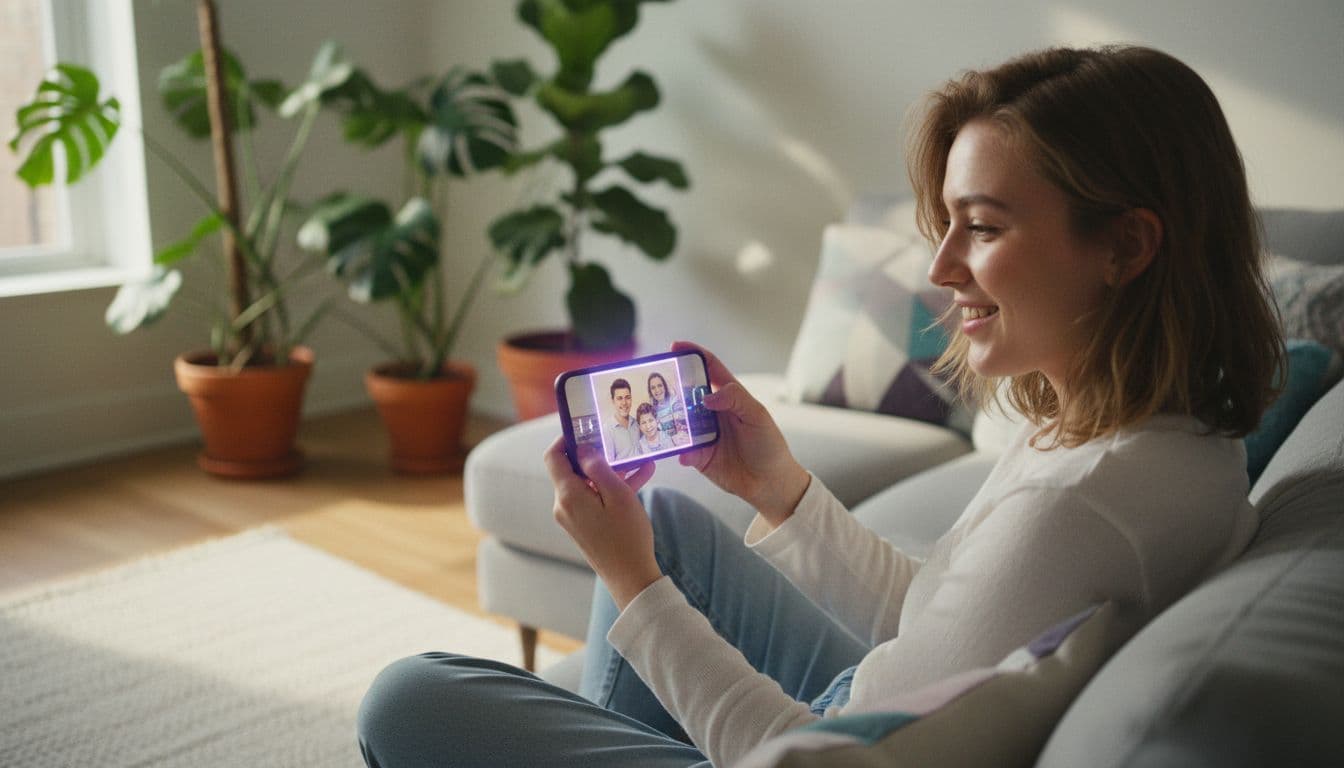
This image to video AI tutorial walks you through the whole process in four steps: prepare a sharp photo, pick the right model, write a one-sentence motion prompt, and refine until the clip looks right. You can follow every step free in VIBE, with no login, on iOS, Android or the web.
In one sentence
Image to video AI is a technique in which an AI model takes one still photo as the starting point and generates a short video by predicting how the scene would move, guided by a text description of the motion.
Image to video AI tutorial: how does it work?
In image-to-video generation the photo fixes the subject, the lighting and the composition, so the model only has to invent motion. That is why results are usually steadier than pure text-to-video, a point the general overview of text-to-video models makes in broader terms: the more visual information a model starts with, the less it has to guess.
Not every model accepts a photo. As of October 2026, Veo 3.1 Fast in VIBE is text-to-video only (Google DeepMind documents the Veo family on its model page), while Wan 2.6, Seedance Pro Fast and Kling 3 all take an image as input. If you want a wider introduction first, read our guide to turning any photo into a video; this tutorial focuses on the repeatable workflow and on fixing what goes wrong.
Step 1: Which photo should you start with?
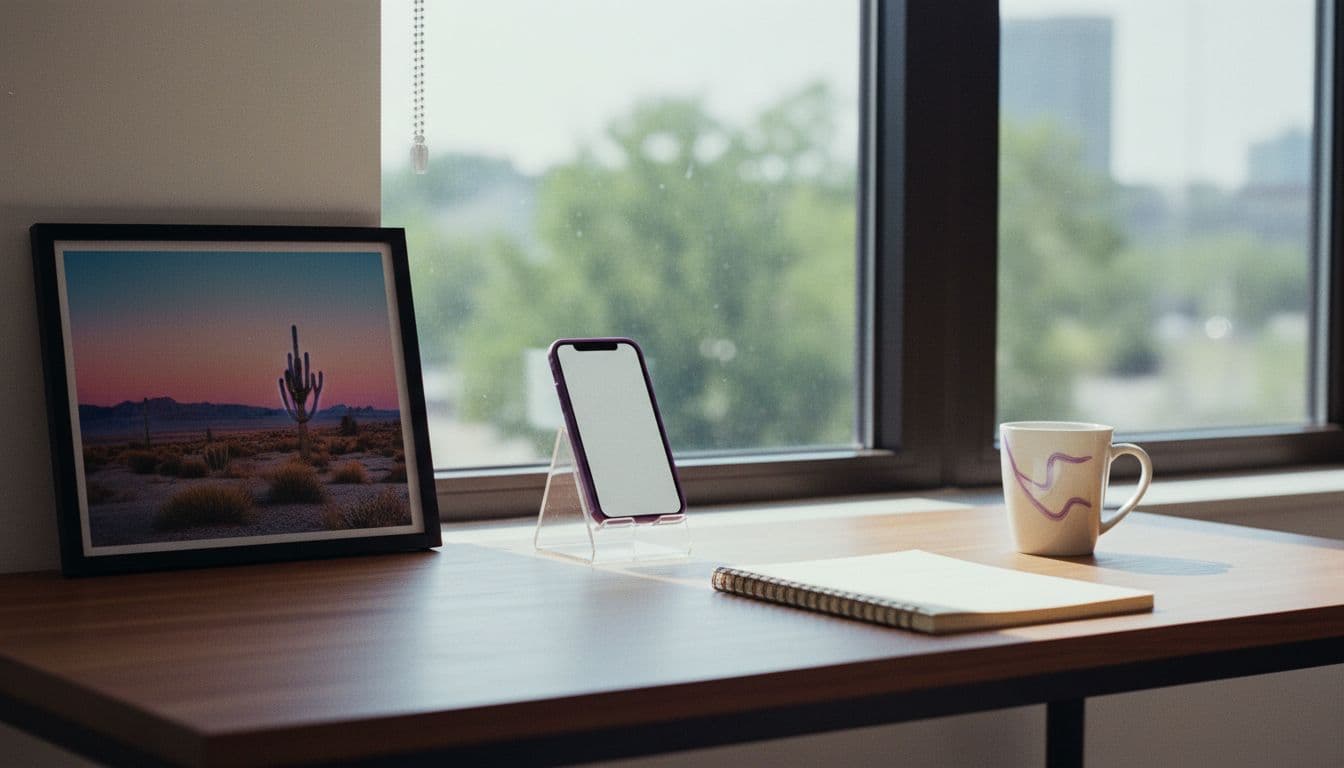
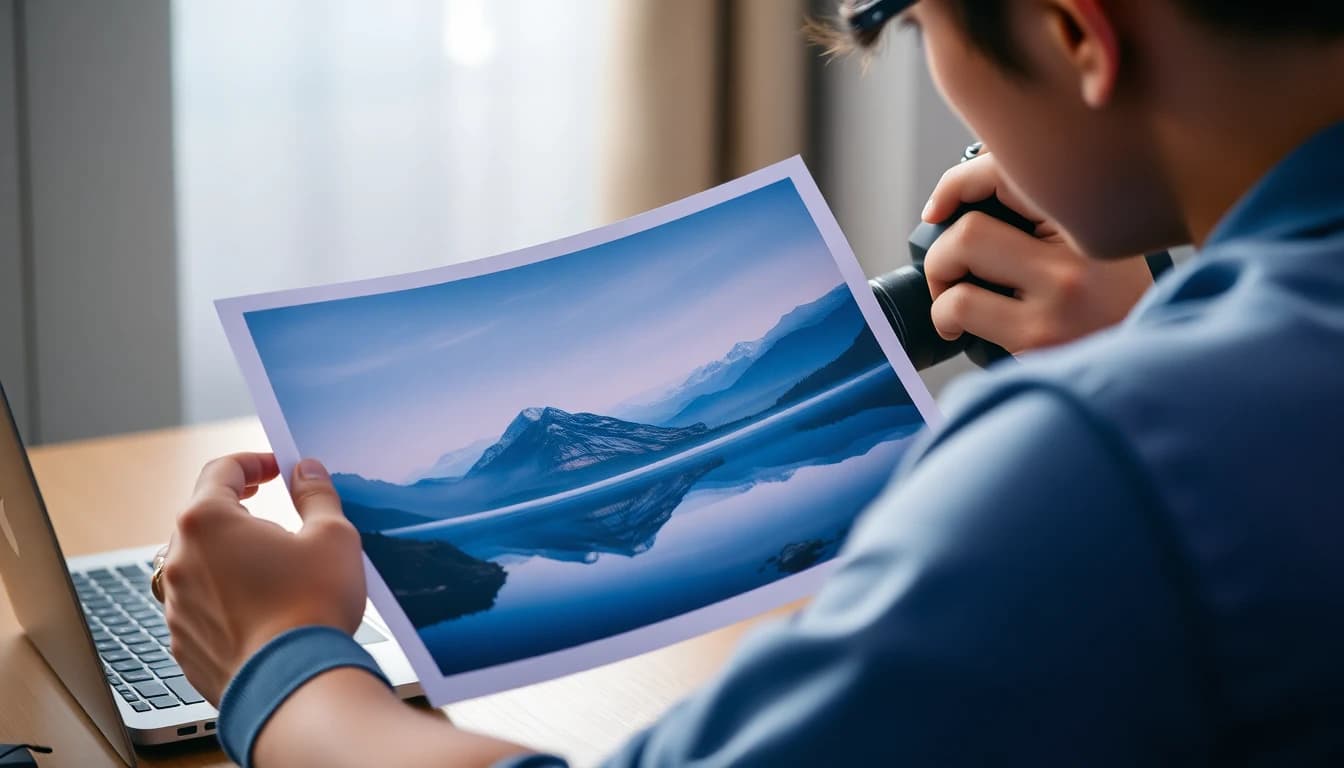
Your source photo matters more than the model you choose. Whatever is unclear in the photo stays unclear in the video, so prepare it before you upload. Five habits make the biggest difference:
- Crop to one subject. One person, pet or product that is easy to separate from the background.
- Use the sharpest original. Screenshots, heavy filters and compressed chat copies smear as soon as they move.
- Leave room to move. Empty space around the subject gives the camera or the body somewhere to go.
- Match the format. Crop to 9:16 for TikTok, Reels and Shorts or 16:9 for YouTube before uploading; our aspect ratio guide explains why.
- Skip text and crowds. Signs, labels and busy group shots tend to warp when they move.
A quick test: view the photo at full size on your phone. If you can clearly tell what the subject is and where its edges are, the model can too. If you have to squint, the video will look worse than the photo, because motion exposes every soft edge and compression artifact that a still image hides.
Step 2: Which model should you choose?
Start free and upgrade only when the idea works. A good habit is to run the same photo and the same prompt on two models before you spend anything on a premium one. These are the three image-to-video models we suggest for this tutorial, with specifications from the VIBE model pages as of October 2026:
| Model | Tier in VIBE | Resolution | Max length | Audio |
|---|---|---|---|---|
| Seedance Pro Fast | Free | 720p | 8 s | No |
| Wan 2.6 | Free | 720p | 8 s | No |
| Kling 3 Pro | Premium | 1080p | 15 s | Yes |
Seedance Pro Fast is a quick way to test a prompt, Wan 2.6 is a good second opinion on the same photo, and Kling 3 Pro is the one to use when you need 1080p, longer clips or built-in audio. All of them are listed under models on the home page, and the free ones need no login. Audio is the clearest dividing line: only Kling 3 Pro adds sound among the three, so if you want it, plan for it from the start rather than after the fact.
Step 3: How do you write the motion prompt?
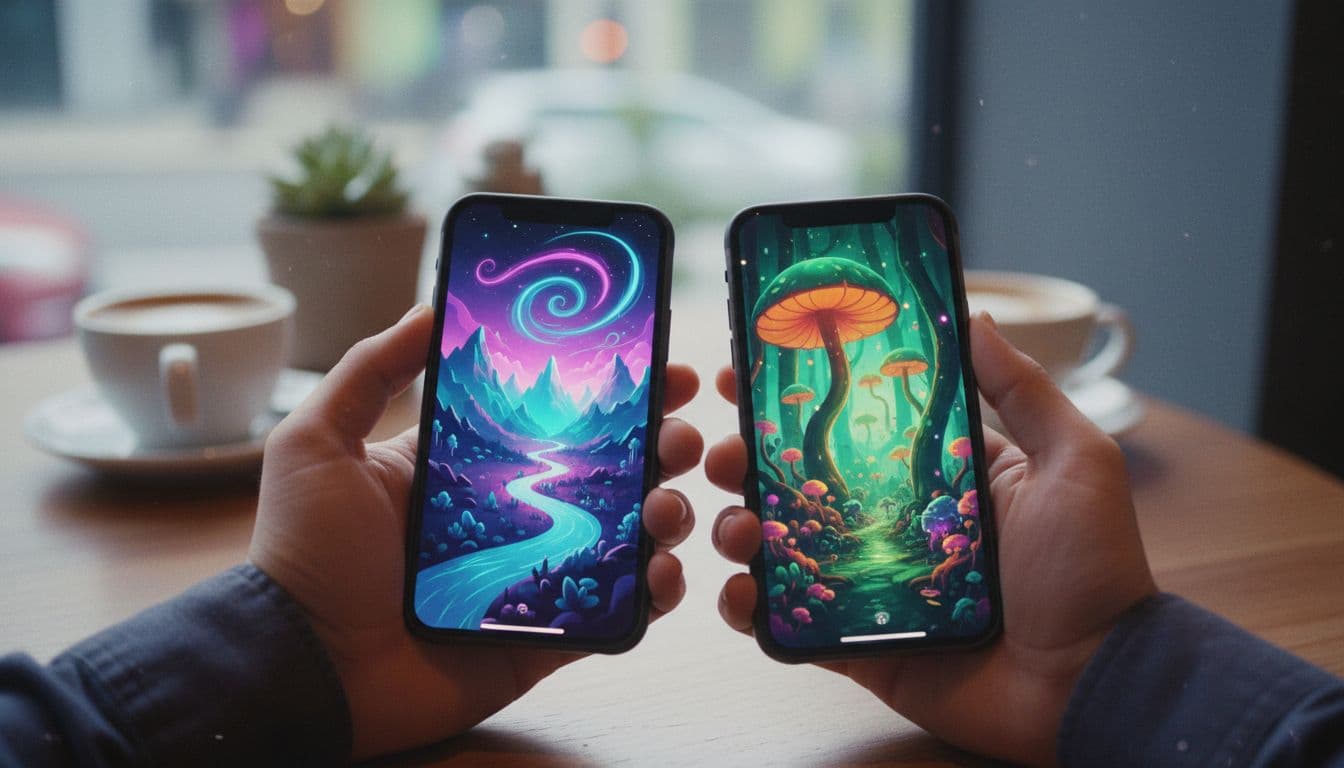
The photo already shows the scene, so do not describe it again. Write only the change: who or what moves, how, and what the camera does. A reliable template is subject + one clear verb + one camera move, for example “the woman turns and smiles, slow push-in”. Keep it to one or two sentences, because a clip of a few seconds can only hold one or two ideas.
- Push-in: the camera moves slowly toward the subject, good for portraits.
- Pull-back: the camera reveals more of the scene, good for landscapes.
- Pan left or right: the camera sweeps sideways, good for wide scenes.
- Orbit: the camera circles the subject, good for products.
- Static: the camera holds still while only the subject moves, the safest choice.
Small physical verbs work best: blinks, turns, steps, steam rises, hair blows, fabric ripples. Big verbs such as “dances” or “runs across the room” force the model to invent a body you never showed it. For more wording ideas, see our guide to writing AI video prompts.
Finally, say what should stay still. If the background is a calm street, add “background stays calm” or choose a static camera; otherwise the model may animate everything at once and the subject loses its focus.
Step 4: How do you generate and refine the video in VIBE?
- Open VIBE on iOS, Android or the web and choose image-to-video.
- Upload your prepared photo.
- Pick a free model such as Seedance Pro Fast or Wan 2.6 for the first test.
- Paste your one-sentence motion prompt and generate.
- Watch the result, change exactly one thing in the prompt, and generate again.
Changing one variable at a time is the habit that separates quick progress from guessing: if the second clip is better, you know which change did it. Most good clips take two or three tries rather than one. The full flow is also shown in the how it works section of the site.
Which prompts can you copy for your first image to video clips?
Each prompt below is written for a photo you already have, and each names the model it suits. Swap the subject for your own and keep the structure.
 Wan 2.6
“A young man in a denim jacket stands on a sunny street. He blinks, smiles slightly and turns his head toward the camera, gentle push-in, a soft breeze moves his hair.”
 Seedance Pro Fast
“A glass bottle of olive oil on a rustic wooden table, sunlight slowly shifts across the label, a few basil leaves tremble, camera drifts slowly to the right.”
 Kling 3 Pro
“A mountain lake at sunrise, mist drifts across the water, ripples spread from the shore, birds cross the sky in the distance, slow cinematic pan to the left.”
What are the most common image to video mistakes?
- Warped faces or hands. The motion was too big. Shorten the prompt to one small action and use a sharper photo.
- The subject barely moves. Add a clear verb; “beautiful, cinematic” describes style, not motion.
- Flicker or melting backgrounds. Busy backgrounds are hard to keep stable; crop tighter or pick a simpler photo.
- Garbled text. Signs and labels often distort; avoid them or accept that they will.
- Wrong crop. The photo did not match the target platform; recrop before uploading, not after.
If a fix makes the result worse, go back one version instead of adding more words. Short prompts are easier to debug than long ones. Animating pets rewards the same discipline, and we cover it in the pet photo guide.
Keep a short log while you experiment: which model, which photo, which prompt and what happened. After five clips you will see patterns, such as one model handling faces better and another handling landscapes better, and you will stop spending generations on combinations that never work.
How do you post the finished clip?
Check the clip once at full screen on your phone before you share it. Look at the first second, because that is what viewers on TikTok, Instagram Reels and YouTube Shorts see before they scroll. If the opening frame is your original photo, it already looks sharp; if the motion starts late, trim the start in your phone's editor.
Keep the original photo too. Animated clips pair well with the still: post the photo, then the clip a day later, and let the contrast do the work. The first one to three seconds decide whether people keep watching, so pick the motion that is most visible early. More questions about plans, limits and the free tier are answered in the site FAQ.
Frequently asked questions
Can I generate videos with AI from images?
Yes. Image-to-video models take a photo as the starting frame and generate a short clip from a text description of the motion. In VIBE, Wan 2.6, Seedance Pro Fast and Kling 3 support it, and the first two are free with no login.
How do AI video creation tools work?
They are trained on large collections of video to predict how a scene changes over time. You give them a text prompt and, in image-to-video mode, a photo, and they generate the frames of a short clip.
Is image to video AI free?
You can start free. Seedance Pro Fast and Wan 2.6 are on the free tier in VIBE, while Kling 3 Pro is premium and suited to higher resolution and longer clips.
How long can an image to video clip be?
It depends on the model. As of October 2026, Wan 2.6 and Seedance Pro Fast in VIBE produce up to 8 seconds at 720p, and Kling 3 produces up to 15 seconds at 1080p.
Why does my face look different in the video?
Usually because the motion was too large or the source photo was low resolution. Use a sharp original, ask for a small action such as a blink or a head turn, and avoid prompts with several actions.
What is the best photo for image to video?
One sharp subject with empty space around it, cropped to the aspect ratio of the platform where you will post it.
- #imagetovideoaitutorial
- #imagetovideo
- #aivideofromphoto
- #aivideoprompts
- #freeaivideogenerator
Start Creating AI Videos Today
Download VIBE for free on iOS and Android. No login required. Access 10+ AI video models and generate videos from text prompts or images.


Keep reading
All articles Trends & tutorials
Faceless YouTube Channel AI Video: A Realistic 2026 Playbook
A faceless YouTube channel needs no on-camera host: AI video supplies the visuals, a voiceover supplies the story. Here is the workflow, the niches, and YouTube's rules.
Vincent Park9 min read Trends & tutorials
Consistent Character AI Video: How to Keep the Same Face in Every Clip
A consistent character in AI video means the same face, hair and outfit from shot to shot. Here is why characters drift, and the reference-image and prompt workflow that stops it.
Vincent Park9 min read